
Getting started with HyperW
From signup to your first campaign and its results.
Before you start
-
1
Have these ready: your website URL, an EU-registered business with a KvK or VAT number, a card for checkout (nothing is charged during the trial), and the e-mails you receive from HyperW. You first log in with the Set my password link in your preview e-mail (valid 24 hours); it logs you straight in.
-
2
Know what HyperW does and does not do.
- ·It adds a funnel page next to your website.
- ·It never sends your campaign mail. You send it from your own platform.
- ·It never processes bounces.
- ·It never syncs a CRM. You export identified companies as CSV instead (Growth and up).
Done when you have set your password and see your dashboard.
Your knowledge base
-
1
HyperW read your website at signup. Open Knowledge Base and check what it found. Edit it and press Save Knowledge Base; saving updates your funnel content straight away.
-
2
Add what your site does not say: your offer, your approach in your own words, proof (cases, numbers, quotes). Documents go under Knowledge Base Documents (PDF, DOCX or TXT, max 5 MB). The image set is on the same tab, Growth and up.
-
3
HyperW reviews your knowledge base before your preview e-mail goes out. Edit it as often as you like; every save updates your funnel.
-
4
If HyperW could not read enough of your site, we write the knowledge base by hand. Your preview e-mail arrives when it is done, normally within one business day of signup.
Done when your preview shows your offer the way you would say it.
Going live
-
1
Your preview e-mail has three steps: Set my password, Preview my funnel, and a TXT record that starts with hyperw-verify=.
-
2
After you set your password you land on Review your brand. Check the colours and logo HyperW took from your site, and preview your funnel.
-
3
Add the TXT record at the root of your domain, with your DNS provider. Then press Verify & publish under Publish (go live). DNS can take a while to update. HyperW also checks every 30 minutes on its own, so you can close the page.
-
4
Once verified your funnel is live at yourname.hyperw.net, and the badge next to your name in the dashboard changes from PREVIEW to LIVE. Campaign links do not open for visitors until you are live.
Done when the badge says LIVE.
Your funnel
-
1
Open Preview funnel, top right of the dashboard. Pick a sector on the wheel and the page rewrites. This is what your visitors see.
-
2
Your funnel's language is taken from your website at signup (English or Dutch). To change it, e-mail office@hyperw.net. For a Dutch funnel, choose je or u under Brand, Dutch form of address.
-
3
Optional: run the funnel on your own domain (go.yourdomain.com) with one CNAME record; ask office@hyperw.net and we set it up with you. Also optional: an ordinary link to your funnel from your own site.
Done when you have seen your own funnel rewrite for two sectors.
Your first campaign
-
1
New campaign first asks How do you want to start?: I already have a post or text, or I have content, help me with the texts. You choose the channel inside step 1, Basics: LinkedIn, Live Event, QR Code or Email, one channel per campaign.
-
2
Five steps. Each step heading has a 10 s pill, a ten-second clip of that step; the campaign hub's four tabs (Setup, Share, Follow-up, Results) have one too.
- 1Basics: your article or text, the welcome title and the channel.
- 2Audience: General post, or People you know (Email always needs People you know).
- 3Design.
- 4Copy (AI): HyperW drafts two variants and you approve one; optional when you start from your own text, and there is no drafting for QR Code and Live Event.
- 5Review.
-
3
General post gives one tracked link or QR code; People you know gives a personal link (or QR) per recipient. HyperW never sends: you publish the post, send the mail from your own platform, or print the code. Links only open for visitors once your funnel is live.
Done when you have copied its link. The campaign turns Live after its first visits.
Reading the results
-
1
Reports shows Page views, Identified companies and Conversion events, plus Signals used and Consent rate. Per-campaign results are on each campaign under Campaigns. The company CSV export in Reports is Growth and up.
-
2
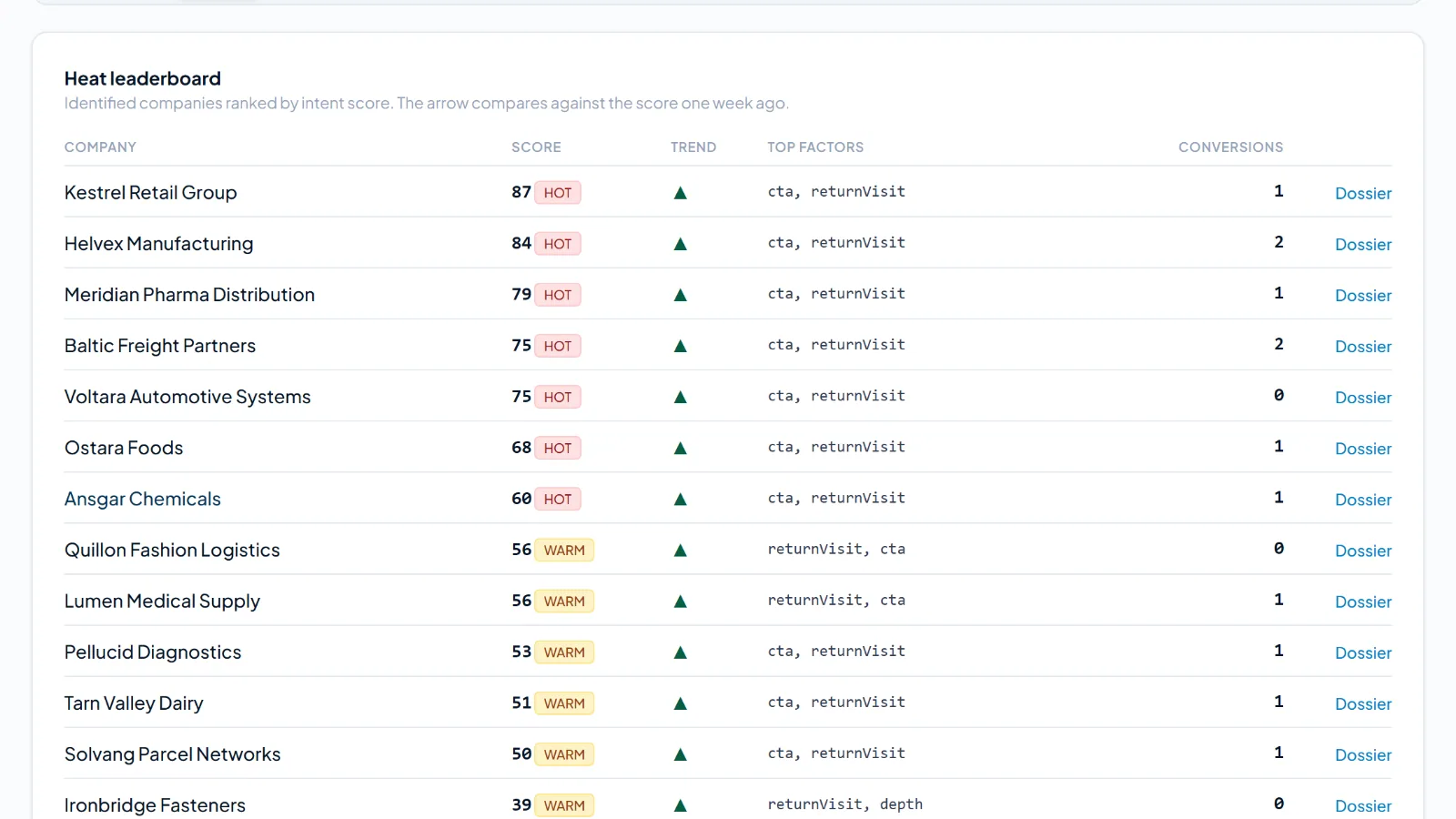
Every identified company gets a heat score from 0 to 100 (Deal Radar), built from factors such as return visits, depth of reading and button clicks. You see it on the company's alert card, with a link to open its sales dossier. On Growth and up the company export in Reports includes the score.
-
3
Alerts posts a card in your own Microsoft Teams channel when a visitor shows intent, and on every conversion. Connect it under Alerts: choose Microsoft Teams and paste your channel's incoming-webhook URL. On Growth and up, Alert routing sets a minimum intent score (40 warm, 70 hot, 90 tier 1) and company heat per channel, plus quiet hours. A weekly digest arrives in the same channel on Monday.
Done when your first alert card has arrived.
Following up
-
1
The follow-up draft arrives in your Microsoft Teams channel, right under the alert for a hot visitor (score 70 or higher) from an identified company, with Copy and Regenerate buttons. It is written only from your knowledge base. It needs an alert channel. Launch: 5 drafts a month; Growth and up: unlimited.
-
2
Review it, copy it into your own mail, and send it yourself.
-
3
On Growth and up, drafts that follow a campaign have a Mark as sent button; press it after you have sent your mail.
Done when one draft has been reviewed and marked.
Your trial and plan
-
1
Your trial runs 14 days with 50,000 signals. Your card was saved at checkout; nothing is charged until the trial ends. During the trial you have the features of the plan you chose.
-
2
The trial converts to the plan you chose unless you cancel under Billing or by e-mail to office@hyperw.net. HyperW e-mails the reminder three days before the trial ends.
-
3
A signal is a unit of AI work: HyperW counts the text its AI reads and writes, in tokens (small pieces of words), when it writes content for your funnel, campaigns and drafts. Pages served from cache cost no signals, and the setup at signup is free. If you use up your allowance, visitors keep seeing your pages from cache and new AI writing pauses (on a paid plan after a small buffer). The Signals tab shows how much you have used.
-
4
What changes per tier is on the pricing page.
Done when you know your trial end date.
Getting help
-
1
Account questions go to office@hyperw.net. Data questions go to privacy@hyperw.net.
- 2
-
3
If you would rather we run the first campaigns with you, choose Managed Start.
Request a proposal
Done when you know which address to write to.